
Using the Conference Program
at Vascular Biology 2026
Access the Program
Our interactive conference program is web based and available here:
https://virtual.oxfordabstracts.com/e/vb2026/homepage
To access it on your phone, scan the QR code.
This is not a downloadable app, but a web site. Bookmark it for easy access.
If you have never used Oxford Abstracts, you'll need to create an account; otherwise simply log in. This is the same software used for the abstract submission.

View the Homepage
You will find this program easy to use and very functionable.
The "Tips" or shortcuts on the Homepage allow you to Search the program, and direct you to Your Profile, the Exhibitors, Your Bookmarks, and Ways to Connect with other meeting participants.
You can opt to hide these tips.

Update Your Profile (Badge):
You can use the shortcut on the Homepage, "Customize your Badge" or click on the person icon from anywhere in the program.
Read notifications and set your notification preferences as well.


Upload your photo, add your name, title and affiliation, social media handles and choose your tags. Be sure to use the "Seeking a New Position" or "Recruiting" tag if you are looking for a new position or seeking to fill one.
In this section you will also indicate whether or not people can send you a chat or see when you are online within the program.

Navigate the Program
In addition to the Homepage and Agenda, you can easily access your Bookmarks. You can bookmark sessions and abstract presentations. You cannot bookmark invited speakers' talks.
The listing of Presentations includes all abstract presentations and those by the invited speakers. They can be listed in alpha or numeric order (program number order). Presenters/Authors includes all authors, whether or not they are attending the meeting.
Seek out fellow attendees, exhibitors and speakers in Participants. You can search by tags in addition to their names.
Exhibitors have "virtual" booths where they have helpful information about their products and services, which you can view prior to arriving. Be sure to visit their actual booths during the poster sessions.
Manage Chats
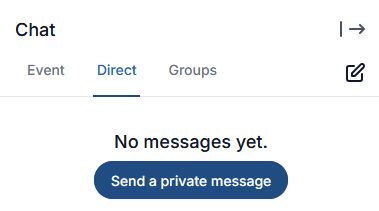
You can send an Event chat that all participants can view, a Direct chat to any individual participant that allows it (Chat settings under Your Badge) or a Group chat to a specific group that you can create. Group chats can allow any other participant to join or can be limited to an invited group.
Extras
Download a PDF of Entire Agenda or One Session
You can create your own "Meeting at a Glance" using the download icon in the top bar:

Or, download the details of one session from the icon in the upper right corner of each session.

Add a session to your personal calendar
Add to Google, Outlook, or Yahoo calendars or download an .ics file. Just click on the calendar icon.
Comment on sessions
Pose questions to presenters, and/or give positive feedback in the box at the top of each session detail.
Enjoy the meeting and we hope you find this program to have great functionality
and easy to use. Let us know in the meeting evaluation form.